New Variable
New variables can be created to enable specific calculations during app execution. These calculations can be based on different criteria, including inputs, selected regions of interest, detected labels, and other image-derived data.
Input
The first step when adding a new variable is to specify the data on which the variable should be created. In the Input menu of the Add New Variable dialog, the following options are available.
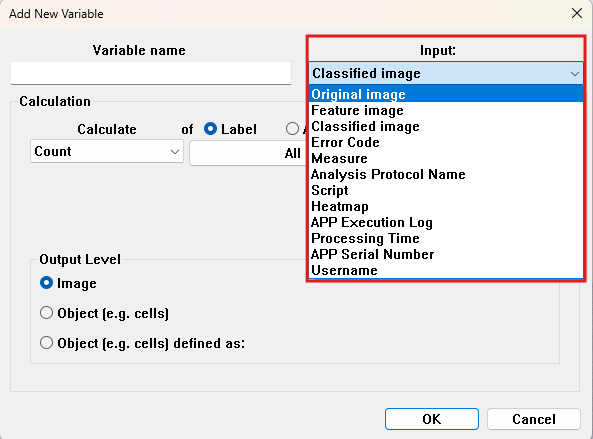
Depending on what input is chosen, further options are available, which is explained more in the following links:
| Input | Link |
|---|---|
| Original image: Use specific colour bands of the image. | Original image |
| Feature image: Use specific features of the image. | Feature image |
| Classified image: Use the classified image e.g. labels. | Classified image |
| Other inputs: Error Code, Measure, Analysis Protocol Name, Script, Heatmap, APP Execution Log, Processing Time, APP Serial Number, Username | Other inputs |
For all input types, the output level have to be defined. The output level of a new variable has a significant impact on the resulting value. Ensure that the selected output level matches the level of analysis of interest to avoid misinterpreting the results.
Output Level
The Output Level panel in the Add New Variable dialog defines the grouping of the output variable. There are three options:
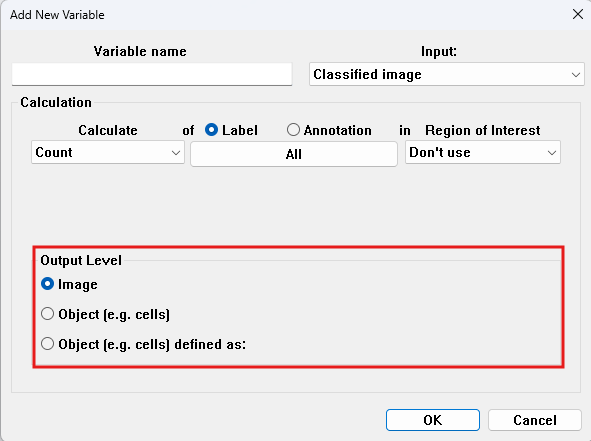
Image
The Image Level provides one value for the entire image or region. In the example below, the APP detects and counts Glomeruli (blue outlines) in a kidney section. Here the Image level is used to report the Count of objects in the whole image.
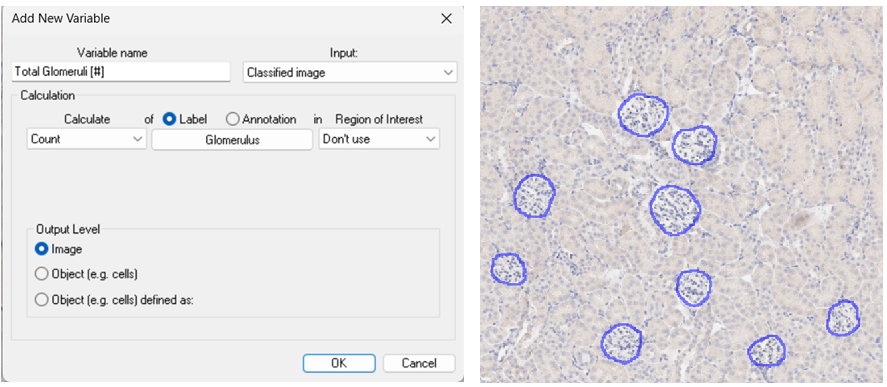
This output level should be used whenever a single value is required for an entire image, such as the total tissue area or the number of cells within a tissue compartment. The final result is calculated differently depending on the selected calculation type and may represent, for example, a sum or a mean value. For instance, when calculating Object Distance across the whole image, the reported result is the mean of the minimum distances measured for each cell.
For an overview of how the different calculation types are accumulated to whole-image measurements, see the relevant table below for the selected input type.
Object (e.g. cells )
The Object level provides one value for each discrete object in an image. It is primarily used when measurements are needed for individual cells or other segmented objects, allowing the distribution of values across the population to be analyzed. In the following example, the DAB (brown) intensity is measured for each cell.
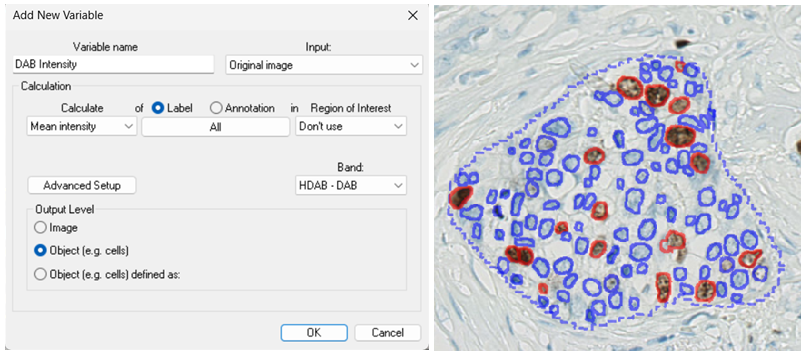
The resulting dataset contains 117 values, one for each cell. If measurements are only required for a specific subset of objects, the corresponding label can be selected in the Label / Annotation field, as shown below.
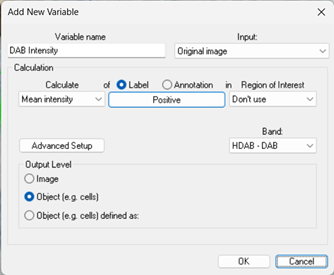
Use this output level whenever results are needed on a per-object basis rather than as a single value for the entire image. Typical examples include cell area, form factor, intensity, object distance, and other measurements calculated for each individual object.
Object (e.g. cells) defined as
The Object Defined as output level allows for the specification of a custom grouping of objects. This is particularly useful when objects comprise multiple label types, such as in in situ hybridisation (ISH) analysis.
In the example below, using the Object output level would treat each label type as a separate object. Using Object Defined As instead combines all contiguous labels into a single composite object
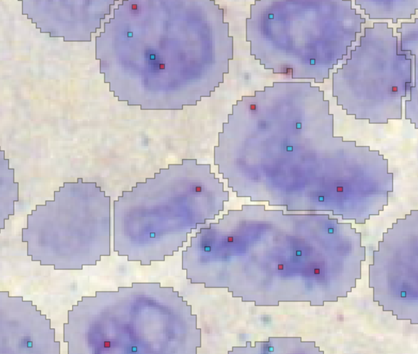
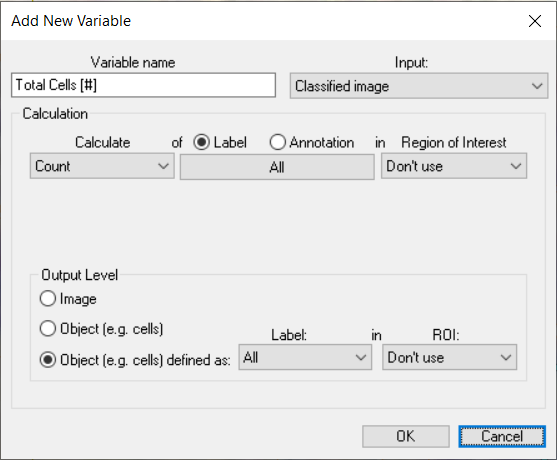
Once the output level has been defined, measurements can be calculated for the composite object. For example, the setup below reports the number of red RNA probe spots associated with each object.
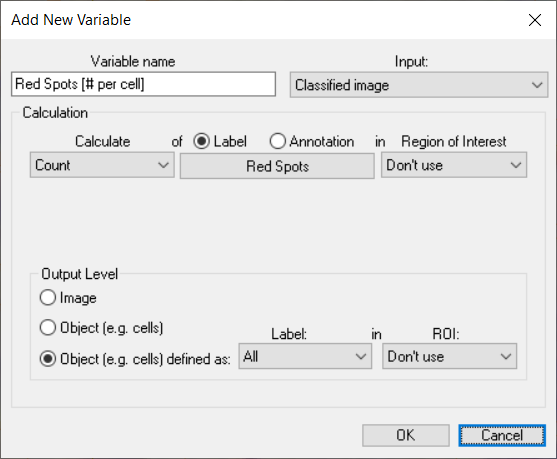
The same procedure can also be used to define objects based on ROIs or collections of contiguous ROIs.
As for the Image output level, the final result is calculated differently depending on the selected calculation type and may, for example, represent either a sum or a mean value. For an overview of how the different calculation types are accumulated when generating grouped measurements, see the relevant table below for the selected input type.