Annotate
Annotations are primarily used for marking and noting objects in images. For image analysis and calculations, it is recommended to use ROIs and labels instead, as annotations may overlap and cause confusion.
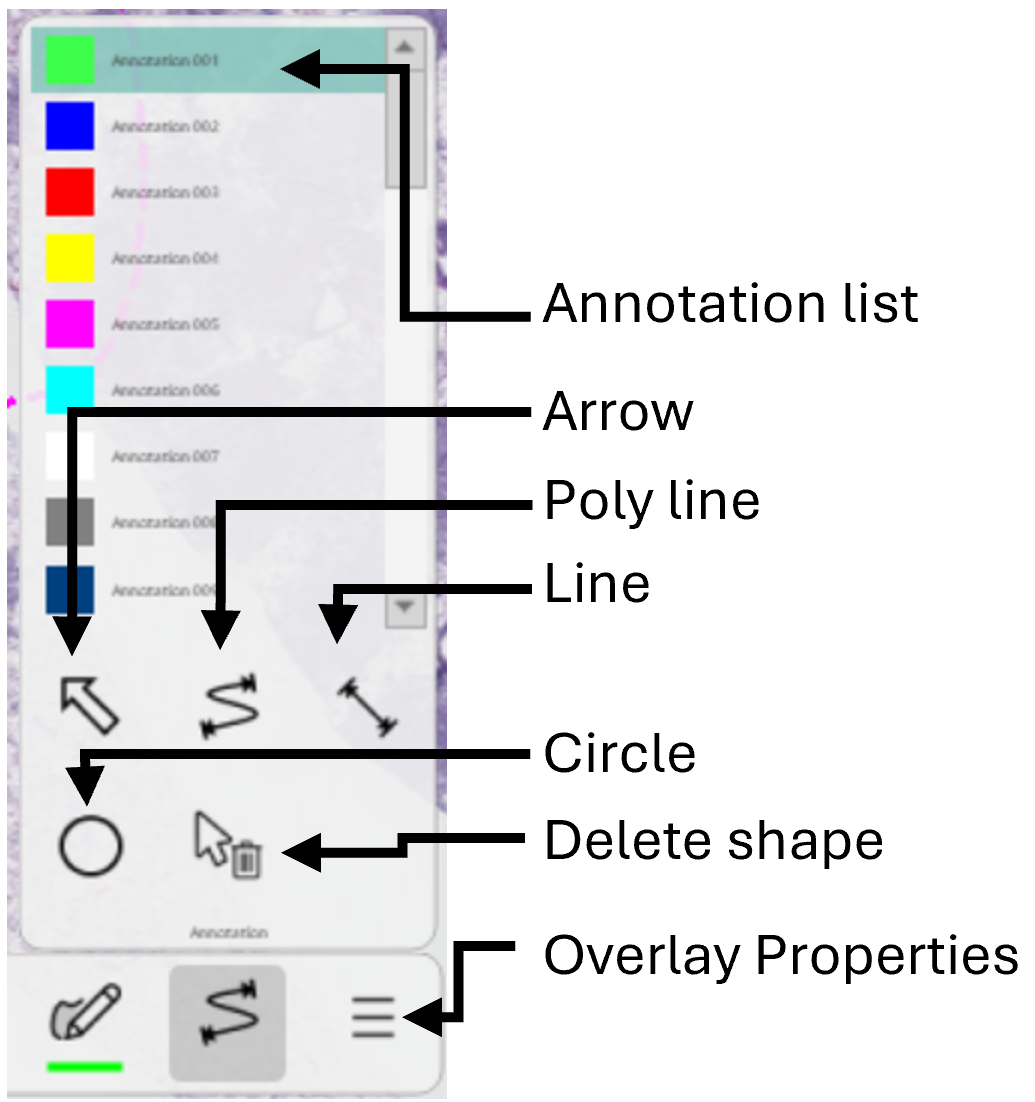
Press F5 to open the Annotation Properties.
Draw an annotation
To activate annotation drawing, simply follow these steps:
-
In the drawing tool, select Annotate
 and choose the correct annotation type and drawing mode. When drawing is activated, the mouse pointer changes from
  to
to  .
.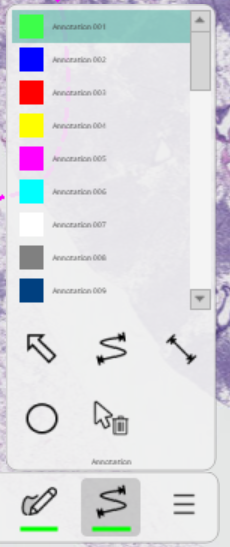
Click Annotate and annotation type to activate annotation drawing. -
Now,
left clickto start drawing and use the mouse to draw the annotation. -
Depending on the drawing mode, double-click, let go or press the
Rkey to complete the annotation. When the annotation has been drawn, the Edit Text dialog will appear, as seen below, where it is possible to add any comment necessary.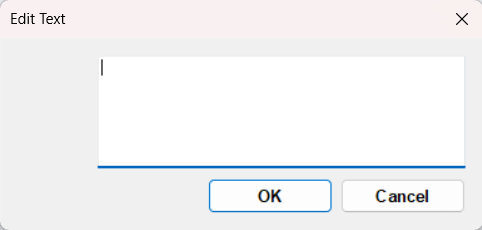
-
Click OK to complete the annotation.
Change current active annotation
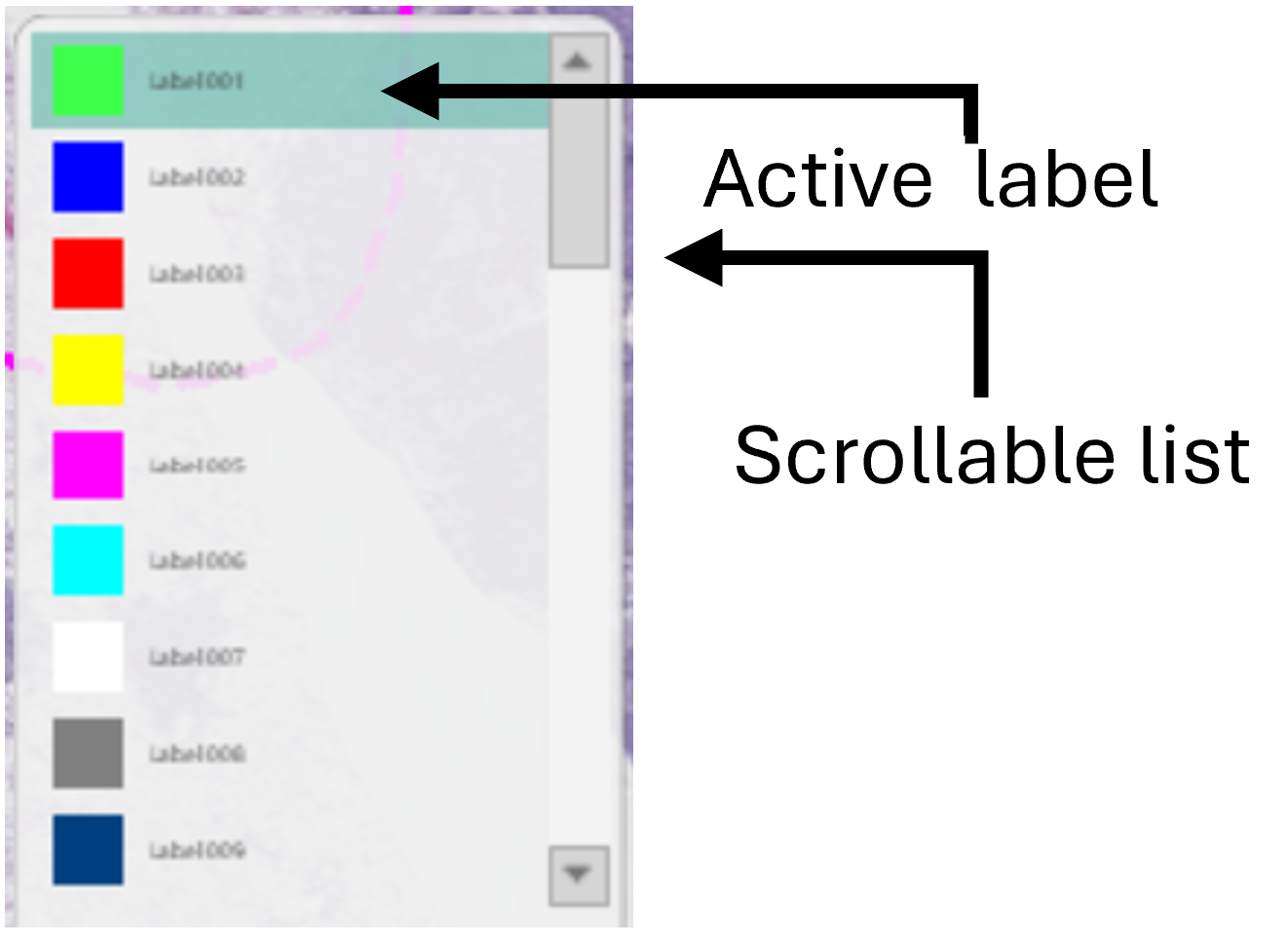
The current active annotation is the annotation highlighted in the scrollable list of the expanded drawing tool. This annotation can be changed in the drawing tool by:
- Hover over annotation in the Drawing Tool to expand the Annotation overlay type.
- Hover over the list and use the middle mouse button to scroll the list.
- Select the desired annotation from the list, and start drawing the annotation.
Delete an annotation
To delete a single annotation, the annotation drawing tool must be activated first:
- Click Annotate in the Drawing Tool as shown below to activate annotation drawing. The mouse pointer changes from to indicating that annotation drawing is activated.
From here, it is possible to delete an annotation in two different ways. Either select the Delete option  , after which clicking on an annotation will delete it, or
- Hold the mouse over the annotation, so that the annotation is highlighted as yellow.
- While the annotation is highlighted, press the
Deletekey to delete the annotation.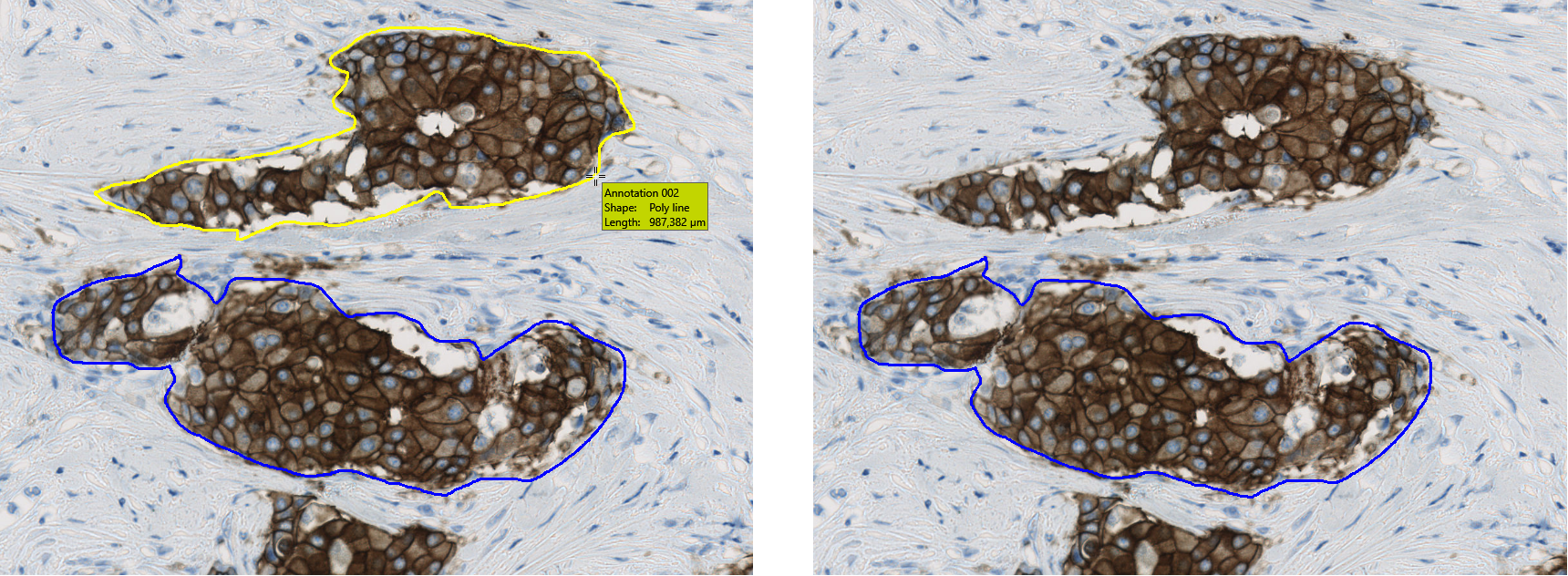
Hover over the annotation to highlight it and press the Delete-key to delete it (Breast cancer tissue, HER2).
While highlighting an annotation, the overlay info box appears displaying information about the highlighted annotation.
Delete all annotations
To delete all annotations, the annotation drawing tool must be activated first:
- Click Annotate in the Drawing Tool as shown below to activate annotation drawing. The mouse pointer changes from to indicating that annotation drawing is activated.
- Hold the
Shift-keyand press theDelete-keyto delete all annotations. Notice that the mouse pointer changes back to.
It is not necessary to highlight an annotation to delete all annotations.
Measure with an Annotation
The Measure provides tools for easy, interactive geometric measurements of length along lines and curves, area, angles and circumference in the image. The user can define up to 255 different measure tools with individual names and colors. When hovering over an annotation, relevant measurements such as length, area, angles and circumference will appear.
It is possible to permanently show the information of the active overlay such as shape, length, area, circumference, and comments by ticking the options in the Properties, Measures, and Comment tabs under View in Overlay Properties.
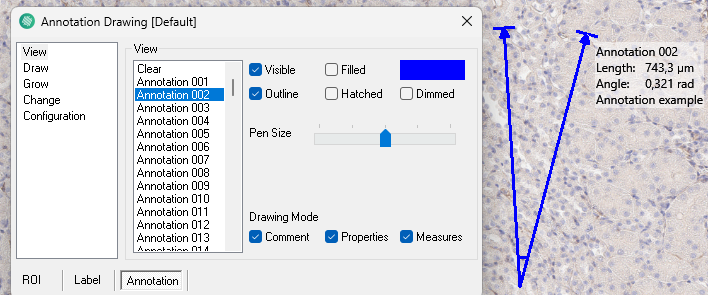
If unchecked, the information will automatically show by hovering on a specific overlay. (default: inactive for all overlays).
Length
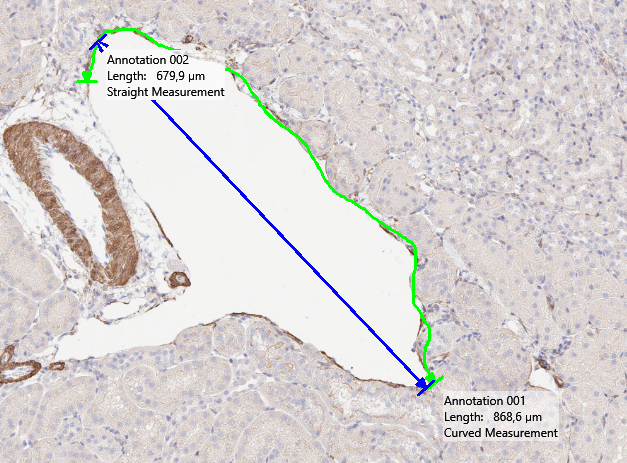
Measures the Length along a straight  or curved
  line between two points. While drawing the lenght displayed will be the lenght from the starting point to the mouse position.
Angle
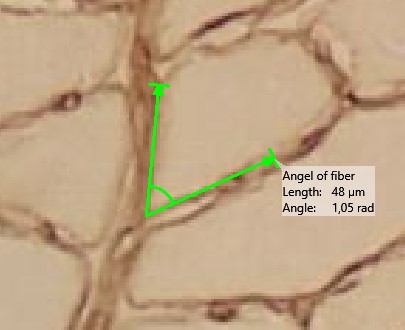
Measures the angle between two straight lines. Using the freehand drawing tool (poly line) , click to start the first line, then click again to add a bend. Double-click to finish the annotation.
Holding down the mouse button prevents the freehand tool from creating straight lines, which makes angle measurement impossible.
Area
Measures the area inside a shape. In the Draw section under Overlay Properties, a variety of predefined shapes is available, such as circles and squares, as well as an option to freehand a polygon.
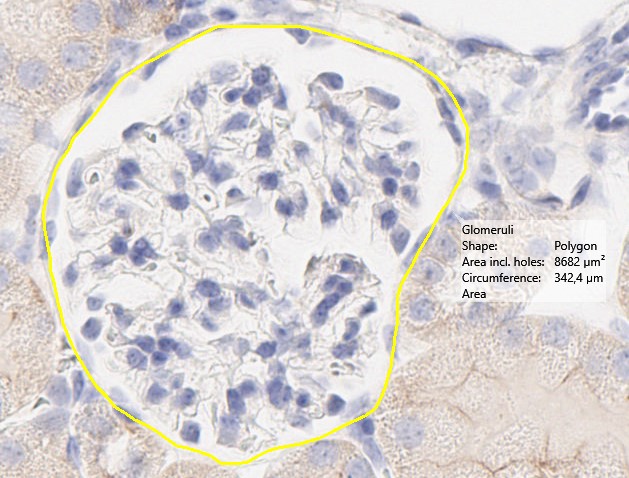
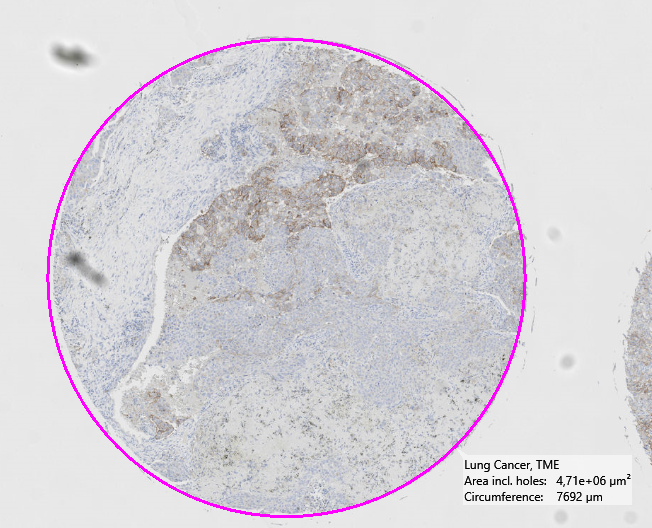
Circumference
The Circumference measurement represents the total length around the boundary of a Annotation.
Configuration properties
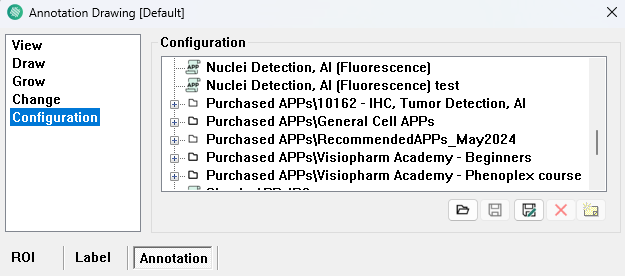
In the Configuration page, configurations are handled. The existing configurations are listed to the right, and the currently active is shown in the Active field. If the current configuration is not saved a '*' is shown after the name of the configuration in the title bar. A measure configuration holds all of the information which is specified in the measure dialog.
 Load the configuration that
is selected in the list. The current configuration is lost if it has not been saved.
Load the configuration that
is selected in the list. The current configuration is lost if it has not been saved. Save the current configuration
under the name that is selected in the list.
Save the current configuration
under the name that is selected in the list. Save the current configuration
under a new name. A dialog where the new configuration name can be specified is
launched.
Save the current configuration
under a new name. A dialog where the new configuration name can be specified is
launched. Delete the configuration that is selected in the list. When a configuration
is deleted from within Visiopharm, the configuration files are backed up in Windows
Recycle Bin. The files are placed in the root of Recycle Bin. To restore the files,
sort Recycle Bin by original location, select all files from a configuration folder,
and click "Restore the selected items" to restore.
Delete the configuration that is selected in the list. When a configuration
is deleted from within Visiopharm, the configuration files are backed up in Windows
Recycle Bin. The files are placed in the root of Recycle Bin. To restore the files,
sort Recycle Bin by original location, select all files from a configuration folder,
and click "Restore the selected items" to restore. Add information
about the current configuration.
Add information
about the current configuration.