Visiopharm General
Visiopharm is a module driven application, enabling users to utilize both standard and customized functionalities via individual modules.
These individual modules are controlled via the Visiopharm main interface consisting of individual areas: the Working area, the Ribbon, the Drawing Tool and the Database. The layout of some of the user interface can be changed by the user, if Layout Locked is unchecked in options. The layout is changed by dragging e.g. the database and allows the user to customize the layout.
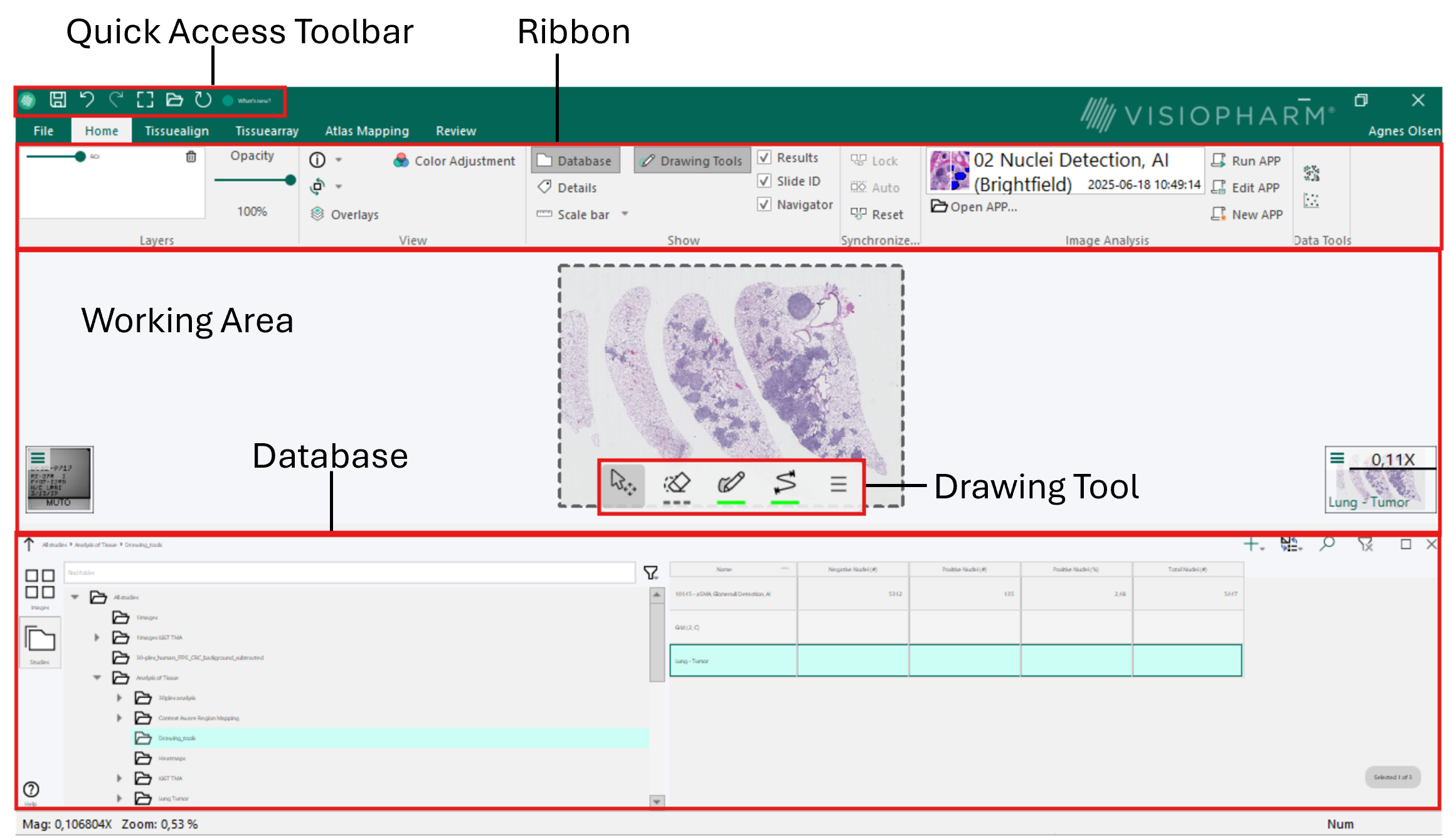
Ribbon
The Ribbon includes:
- The Quick Access Toolbar:

- The Module tabs:

As well as the general buttons and the module specific controls.
The module tabs allows the user to change between different installed Visiopharm modules. Modules are configured individually, but data can be transferred to and from other modules in Visiopharm. The general buttons are useful tools available in all modules. A detailed description of the Ribbon can be found in the Ribbon section.
Working area
Displays images selected in the database. Most work is centered around this window.
Keyboard shortcuts only work if the working area is active. It is active if the mouse pointer looks like  . or
. or  . If the working area is not active, click once inside it to activate it.
Drawing Tool
The Drawing Tool provides a quick and easy way to access Visiopharms overlay tools.

To activate the Drawing Tool, simply click the desired function;
- ROI
 ,
, - Label
 ,
, - Annotation
 ,
,
in the Drawing Tool box and begin drawing. The Drawing Tool can be disabled from the Show tab in the General Buttons section of the Ribbon. More information can be found in the Drawing Tool section, including information about ROI drawing, label drawing, annotation drawing and measure drawing.
Database
The Database is designed to store information about study objects. The study objects are data such as images, measurements, and comments that are stored together in a flexible database structure.
The Database Toolbar includes the buttons and controls that handles the Database area. This includes options to 'Add'  , 'Show'
 , 'Search'
 and 'Clear Filters'
 . The 'Show' option includes the four options to view stored data; the detail format, the macro format, the label format, and the image format. For further information see the Database section.