Batch Analysis
Batch Analysis allows multiple APPs to be grouped into a batch and executed automatically in the background. This eliminates the need to wait for one APP to finish before starting the next, allowing analyses to run unattended. Batch Analysis can be performed on a single image, multiple images, or entire folders, making it especially useful when large numbers of images need to be analysed using the same APP(s).
Running a Batch Analysis
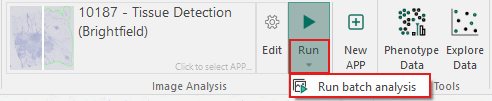
To run a batch analysis on a single image, open the image from the database. Then, in the ribbon, click on the bottom of the Run APP button and select Run batch analysis.
Alternatively, a Batch Analysis can also be run by Right-clicking the image in the database and selecting Run batch analysis.
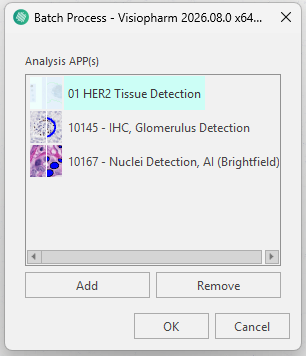
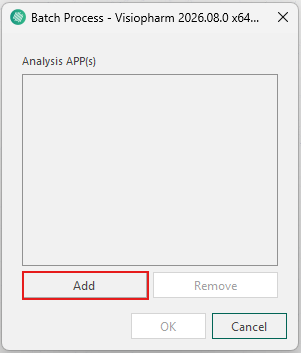
When the Batch Process dialog opens, click Add to select one or more APPs. When clicking Add the APP Selection dialog opens, from there choose the APP(s) to include in the batch one at a time.
Apps run in a top-down order. As their position cannot be modified once added, it is important to add them in the intended execution order.
Once the desired APP(s) have been added, click OK.
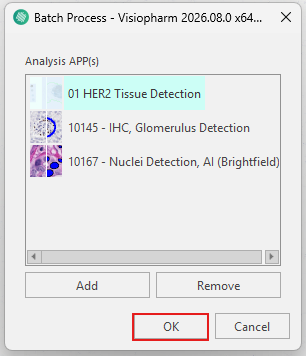
The images are then added to the processing queue. Notifications in the bottom-right corner indicate when processing starts and when it has completed. The progress of the batch analysis can also be monitored from the queue.
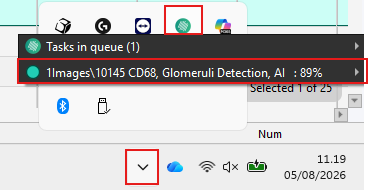
When running multiple APPs, whether as part of a batch analysis or individually, ensure that the output from one APP is suitable as input for the next. For an example see the Input and Output Matching section.
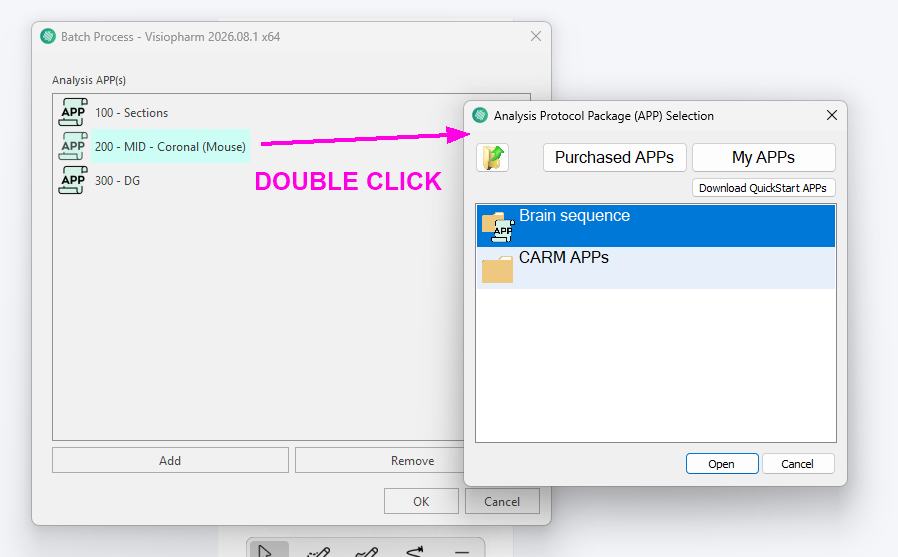
It is possible to quickly change an APP in the Batch Analysis window by double-clicking an APP in the queue:
Running Batch Analysis on Multiple Images or Folders
Multiple images
-
Navigate to the desired folder in the database.
-
Select the images to analyze using
Ctrl + click. -
Either select Run batch analysis from the ribbon, or
Right-clickand select Run batch analysis in the database.
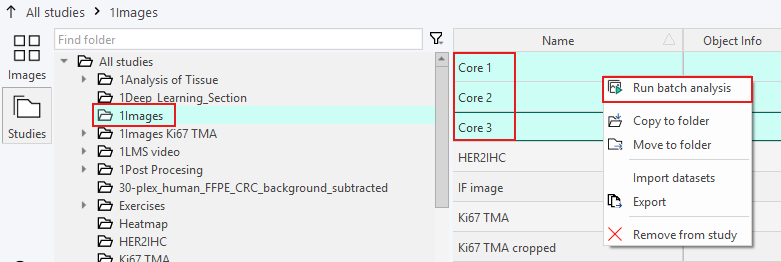
The Batch Process dialog will then open, and the remaining procedure is identical to running a batch analysis on a single image. Results appear in the database as images are processed. If no results are visible after processing has completed, refresh the database by navigating to another folder and then returning to the original folder.
Folder(s)
To analyze all images within a folder, Right-click the folder in the database and select Run batch analysis.
Use Ctrl + click to select several folders.
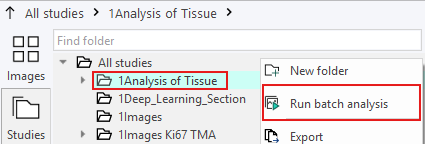
Do not use the Run batch analysis button in the ribbon when analyzing folders. Doing so only analyzes the first image in the selected folder.
Only images located directly within the selected folder are analyzed. Images stored in subfolders are not included in the batch analysis.
The remaining procedure is identical to running a batch analysis on a single image, including monitoring progress through the queue and viewing results in the database.