Region of Interest (ROI)
In many applications, the concept of a region of interest (ROI) is very useful. A ROI defines a subset of image pixels (a region) to which processing and measurement is confined, i.e., pixels outside the ROI are ignored in the computations. The ROI does not need to be continuous and furthermore, multiple ROIs are supported. Defining the ROI is referred to as ROI drawing. When selecting the ROI tool, the following options/functions are available:
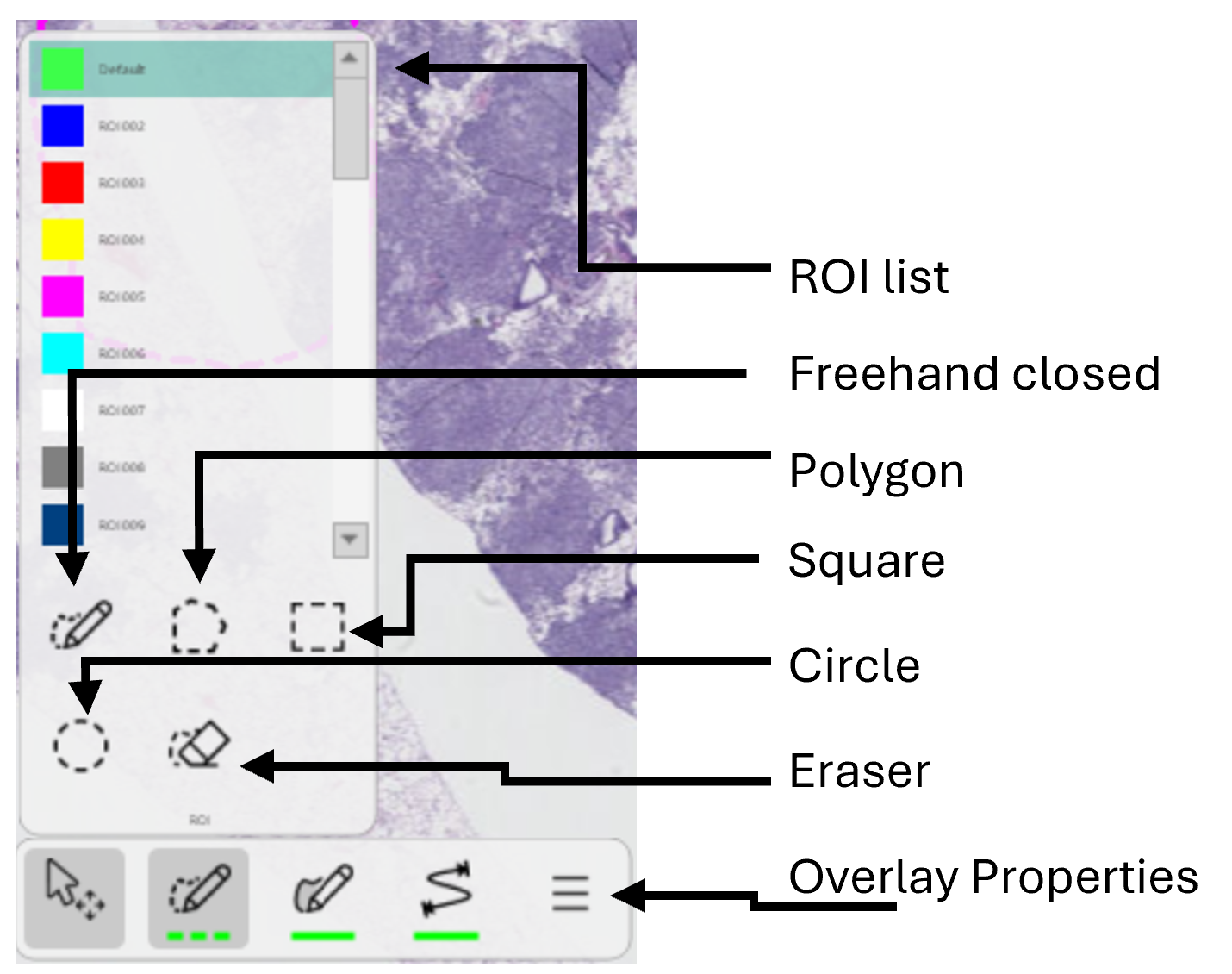
Press F4 to open ROI Properties.
Draw a ROI
To activate ROI drawing, simply follow these steps:
-
Select ROI
 in the Drawing tool, or press the
 qkey to activate ROI drawing with the current active ROI (Default). -
Hover over the ROI icon to expand the Drawing tool, as shown below.
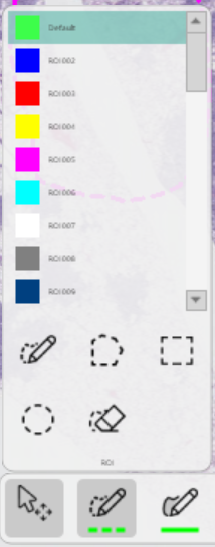
Click ROI to activate ROI drawing and hover over the ROI icon to expand the Drawing tool. -
Select the desired drawing mode, i.e., Freehand closed (default), Polygon, Square or Circle.
-
The mouse pointer changes from
 to
to  when ROI is activated.
 -
Left-clickand hold to start drawing and use the mouse to draw the desired ROI. -
Simply release the mouse button to finish the drawing.
When in drawing mode, press and hold the Shift key and then use the mouse to pan the image.
Or press and hold the right mouse buttonto pan the image.
It is possible to change the default shape by selecting one of the 4 options in the drop down menu of the drawing tool. Other shapes are available from the Draw page of Overlay properties.
Change current active ROI
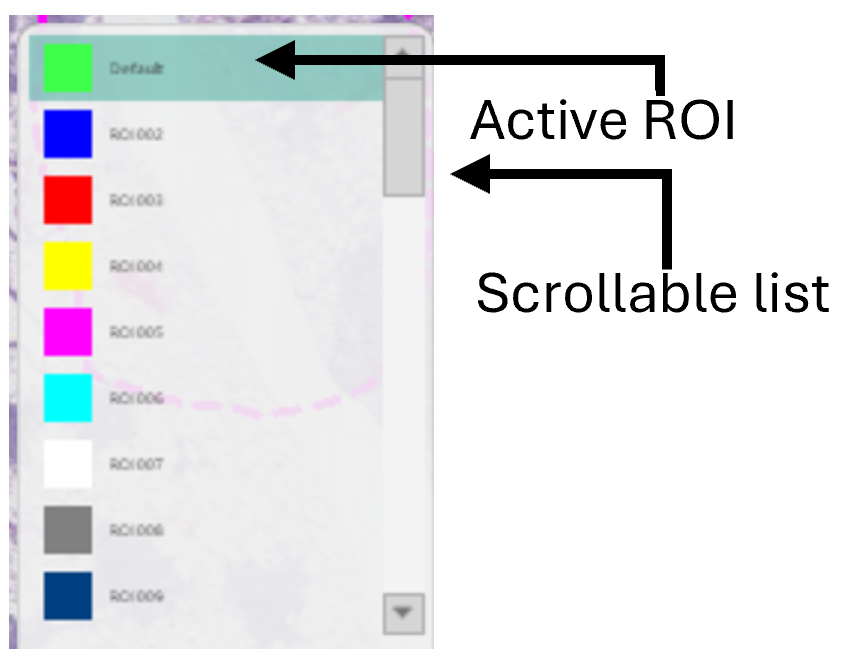
The current ROI is the ROI highlighted in the scrollable list of the expanded Drawing Tool. Change the current ROI in the drawing tool by:
- Select ROI in the Drawing tool.
- Hover over the list and use the middle mouse button to scroll the list.
- Select the desired ROI from the list and start drawing the ROI.
Change the ROI name
The name of the different ROIs (i.e., ROI 001,...,ROI 039) can be changed to reflect what it encapsulates.
-
Select ROI in the Drawing tool.
-
Hover over the list and use the middle mouse button to scroll the list.
-
Double-clickon the desired ROI from the list and rename it as needed.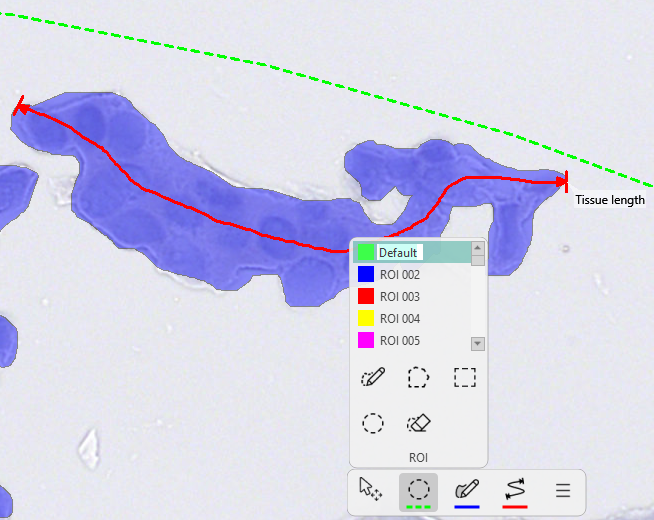
Delete a ROI
To delete a single ROI, the ROI drawing tool must be activated first:
- Click ROI in the Drawing tool to activate ROI drawing.
- The mouse pointer changes from to indicating that ROI drawing is activated.
- To delete an ROI, hover the mouse over the ROI until it is highlighted in yellow.
- While the ROI is highlighted, press
Deletekey to delete the ROI.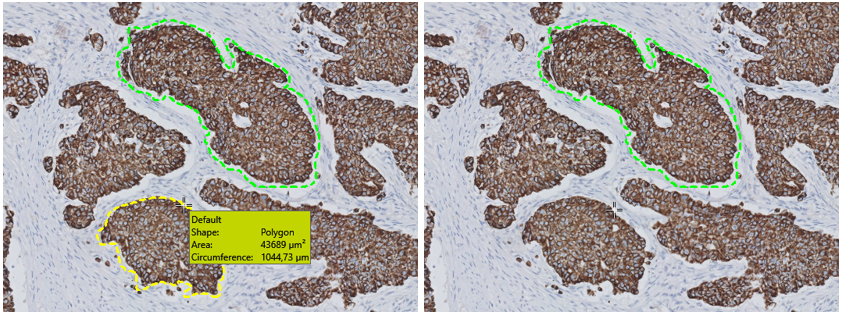
Hover over the ROI to highlight it and press the Delete-key to delete the ROI (Breast cancer tissue CK18).
While highlighting a ROI, the overlay info box appears displaying information about the highlighted ROI.
Notice that the mouse pointer changes back to . To delete another ROI, follow the steps again.
Delete multiple ROIs
To delete all ROIs, the ROI drawing tool must be activated first:
- Click ROI in the drawing tool to activate ROI drawing.
- The mouse pointer changes from to indicating that ROI drawing is activated.
- Hold down the
Shift-key and press theDelete-key to delete all ROIs.
Notice that the mouse pointer changes back to .
It is not necessary to highlight any ROI to delete all ROIs
Erase part of a ROI
The erase tool can be used to delete a part of a ROI:
-
Hover over ROI in the drawing tool.
-
Select the Erase tool as shown below:
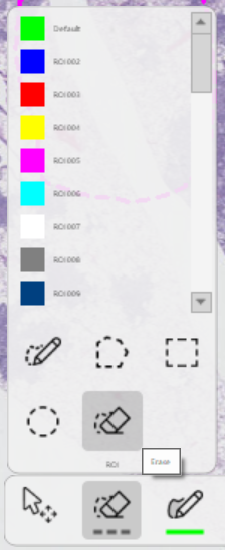
The 'Erase by drawing' tool -
The erasing tool works like the poly line tool. Click and hold the
left mouse buttonover the area that needs to be erased.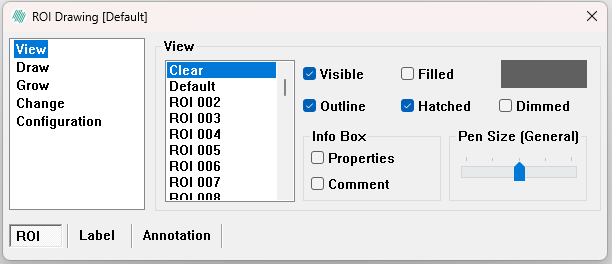
Default settings for eraser tool