ROI
The ROI post-processing steps are used to create ROIs based on labels, create labels based on ROIs, or change an existing ROI from one type to another.
Outline As ROI
The Outline As ROI step creates an ROI around a chosen label. This step is primarily used in workflows where multiple APPs are run on the same image. Running a new APP overwrites any existing classification labels, but by outlining a classification label as an ROI, the detected region is preserved and can be used as input for later APPs in the workflow. Details on ensuring that the output from one APP is correctly used as input for another APP can be found under Input and Output Matching.
| Option | Description |
|---|---|
| Label | Choose a label to outline with an ROI. An ROI will be drawn around the edges of the label, and the Label will remain in the image. |
| To ROI | Choose the ROI to draw. |
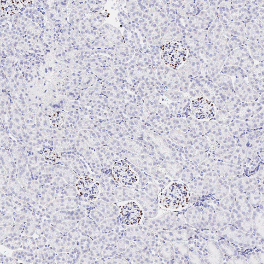

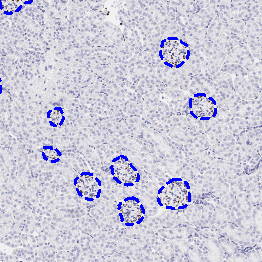
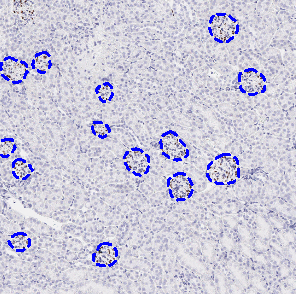
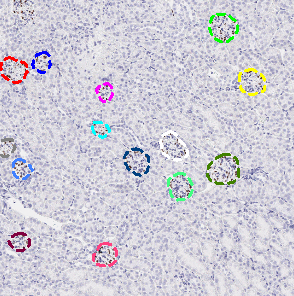
Original image (left). Image of the classification labels (Glomeruli and Background) with no post-processing steps (middle). Image with the Outline As ROI step applied to the Glomeruli label and two Change steps used to change the Glomeruli and Background labels to Clear for better visibility (right).
Create From ROI
The Create From ROI step will create a label from a ROI.
| Option | Description |
|---|---|
| ROI | Choose the ROI that the label should be created from. |
| To label | Choose the label to create from the ROI. |
Change ROI
The Change ROI step will replace all occurrences of a selected ROI with another ROI.
| Option | Description |
|---|---|
| ROI | Choose a ROI to convert to another ROI. |
| Replace with | Choose the ROI to convert to. |
Enumerate Objects
The Enumerate Objects step identifies all objects with the selected label and/or ROI and assigns a unique sequential label or ROI type to each object. The objects label or ROI types are numbered according to the selected Direction.
| Option | Description |
|---|---|
| Objects | |
| Label | Choose the label to enumerate or choose "Don't use" to only enumerate ROIs. |
| ROI | Choose the ROI to enumerate or choose "Don't use" to only enumerate labels. |
| Output | |
| As ROIs | Choose As ROIs to create sequential ROI types. |
| As labels | Choose As labels to create sequential label types. |
| Start from | Defines the ROI or label number assigned to the first object in the sequence. For example, if ROI 001 and ROI 002 already exist, entering 3 starts the sequence from ROI 003. |
| Direction | Select the order in which objects are identified and numbered. Available options are Top -> Bottom, Bottom -> Top, Left -> Right, and Right -> Left. |