Supported Third-Party Devices
Visiopharm supports different devices that can help enhance the work in Visiopharm.
| Device | Description |
|---|---|
| 3DConnexion mouse | A mouse designed with CAD software in mind. It can be used to aid navigation in Visiopharm, as the mouse buttons are mapped to various functionalities within Visiopharm. |
| Wacom pen tablets | Used for accurate hand-drawing. These tablets allow users to draw precise labels in Visiopharm, which is particularly useful in cases where high drawing accuracy is required or when a large number of labels need to be created. |
3DConnexion Mouse Installation and Configuration Guide
- In order to use a 3DConnexion Mouse in Visiopharm first download and install 3DxWare software driver from here. The complete list of software applications that are supported by 3DxWare driver for 3Dconnexion: SpaceMouse, CadMouse, Keyboard and Numpad.
- Follow the installation instructions.
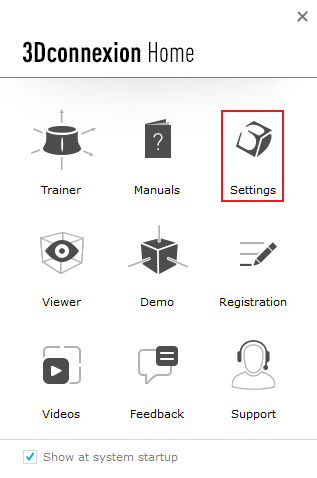
- Once the installation is complete, the 3DConnexion Home window will open. From here, open Settings.
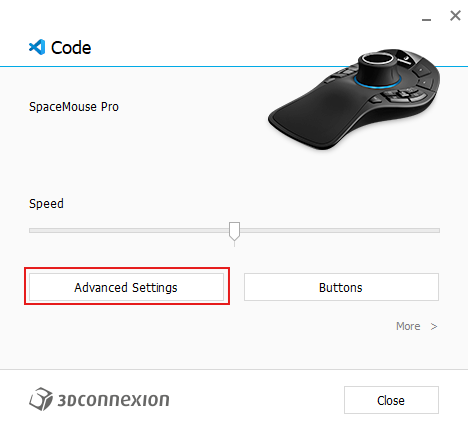
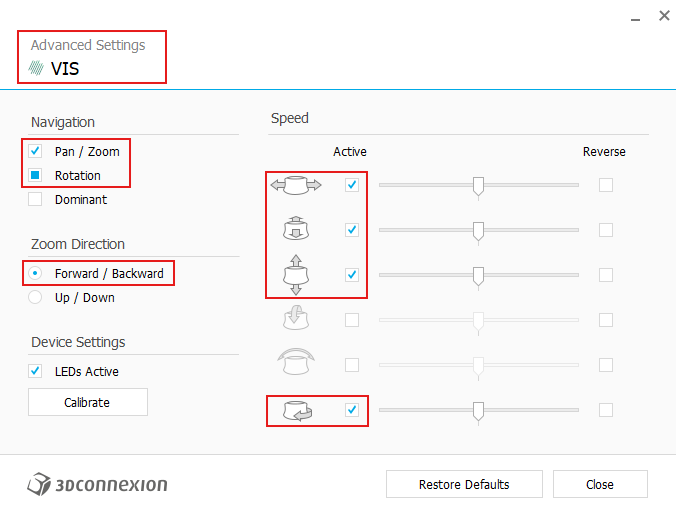
- In the Settings menu, first adjust the control settings in the Advanced Settings menu.
-
A 3DConnexion mouse allows program-specific configurations. To apply the configuration to Visiopharm, open Visiopharm.
-
We recommend using the 2D controls in the Advanced Settings by activating the first three options in the Speed section and leaving the 3D-specific settings inactive. Additionally, activate Rotation and set Zoom Direction to Forward/Backward. Ensure that Navigation is set to Pan/Zoom and Rotation.
- Close the Advanced Settings menu and open the Buttons menu.
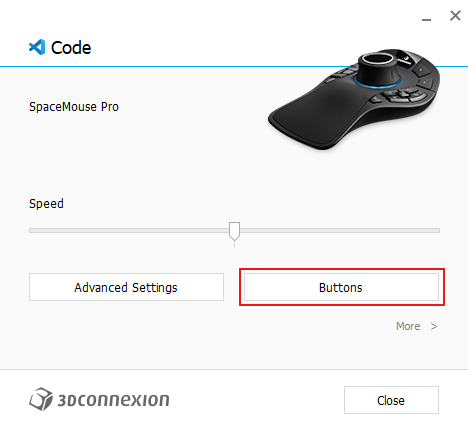
- Several button shortcut configurations can work, but below is one button configuration that works well for Visiopharm. Shortcuts can be changed by clicking on the shortcut field. When the text Type a shortcut appears, press the desired keyboard shortcut, and the button will update.Make sure that the shortcut configuration is applied to Visiopharm by opening Visiopharm, ( The Visiopharm icon will appear in the top-left corner of the Buttons menu).
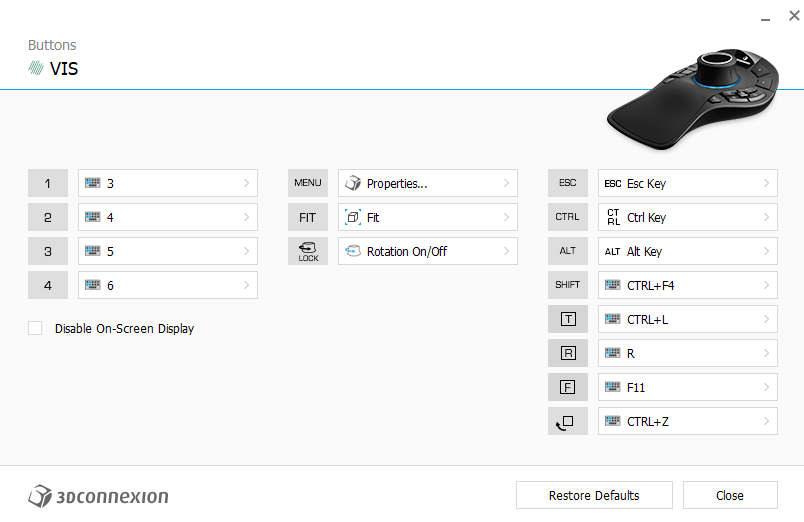
- The 3DConnexion mouse is now configured and ready to use for navigation in Visiopharm.
Wacom Pen Tablet Installation
In order to use a Wacom pen tablet in Visiopharm, first download and install the software driver from here. Upon installation, you will be asked to restart the computer. After the restart, open the installed Wacom Center app. Connect the Wacom tablet to your computer either by cable or Bluetooth, and once the device is connected, follow the instructions in the Wacom Center app to finalize the Wacom pen tablet setup.