Other Inputs
This article describes the different options available when selecting the input for a new variable in the APP Author.
Error code
If Error code is selected as input, no further selections should be made. This option is used to view program errors, e.g. lack of memory during batch calculation. The output is a code signifying a specific error type. Contact program vendor for information on error codes
Measure
If Measure is selected as input it is possible to calculate measures based on the annotations. Select an Annotation Type and an Annotation Measure for the calculation.
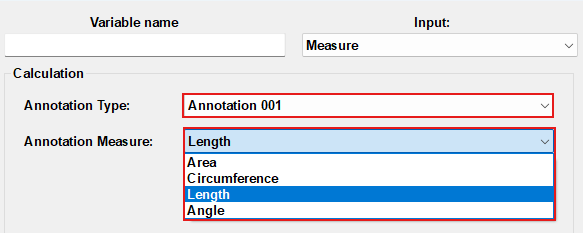
Area: Calculates the average annotation area in .
Circumference: Calculates the average annotation circumference in .
Length: Calculates the average annotation length in .
Angle: Calculates the average annotation angle in radians. For angle measurements to be included in the calculation, annotations must be drawn as described in the Angle subsection of this page
Analysis Protocol Name
If analysis protocol name is selected as input, no further selections should be made. This option saves the name of the applied protocol (the APP name) as a variable.
Script
If Script is selected as the output variable, Visiopharm will execute an R-script, allowing custom calculations to be created for the output variable. The script file must follow the standard UTF8 text file format, and uses US locale for all numbers (. As Decimal separator). The script can contain any number of lines and variables in any format. Comments can be added by prefixing text with #.
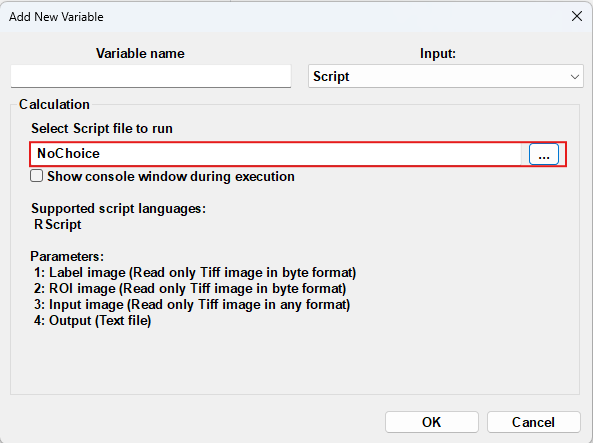
Accessing and loading input data: When the script is executed, Visiopharm passes the following arguments to the script:
- args[1]: Label image
- args[2]: ROI image
- args[3]: Input image
- args[4]: Output text file
The arguments can be retrieved with:
args <- commandArgs(trailingOnly=TRUE)
The label, ROI, and input images can now be loaded using the tiff package. Using this package, images are loaded as arrays of type double with the readTIFF function. Pixel values are automatically converted from byte format (0–255) to double precision values in the range 0–1. For example, a value of 3/255 (~0.012) in the label image indicates that the pixel belongs to the third label type (not including the Clear label, which has value 0). The same applies to the ROI image.
#install.packages("tiff")
library(tiff)

label <- readTIFF(args[1])
roi <- readTIFF(args[2])
input <- readTIFF(args[3])
Note the image arguments are read-only, meaning an image cannot be written back using the writeTIFF command. In stead the fourth argument (args[4]) specifies the output text file where calculations result should be stored. In the example below, the number of labeled pixels is counted and written to the output variable:
result <- sum(label > 0)

write(result, file = args[4])
Visiopharm supports the execution of the script but does not validate or troubleshoot the script logic itself.
Save Object Heatmap
If Heatmap is selected as input, there is an option to save an object heatmap feature to the database as an overlay, similar to other overlay types in Visiopharm (e.g., ROIs, Labels, etc.). This is great functionality that ease the visualization of heatmaps.
- Heatmap Source - Select a feature that contains the heatmap to be saved.
- Feature range - Enter a range that the output heatmap should have. The output heatmap will stretch the feature range to a "jet" color scheme (Image_analysis.Calculate.ObjectHeatmap_jet). E.g. if a range [50->100] is selected, all pixels with a feature value below 50 will be set to 50 (blue color), all pixels with a feature value above 100 will be set to 100 (red color) and the values in between will be stretched to the color scheme. If the feature range is left empty, Visiopharm will auto scale the heatmap output to the minimum and maximum feature values of the heatmap source.
- The Heatmap have the option to make lower values transparent. This will make all pixels with a feature value below the minimum feature range value transparent.
APP Execution Log
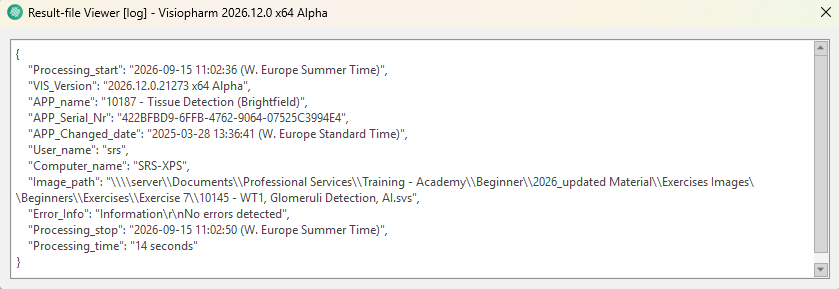
APP Execution Log can be selected to provide an execution log for the APP. The log contains the following information: processing start time, Visiopharm version, APP name, APP serial number, the date of the change in the APP, user name, computer name, image path, error info, processing stop time and total processing time.
The APP execution log will be displayed as a result in the database content area, when saved. Alternatively, it can be exported as a .AuditTail file when exporting numerical values for a given image. An example of an APP execution log opened in the database content area is shown below.
Processing time
If Processing Time is selected as an output variable, the APP execution time will be displayed under Result, Output variables and in the Database content area, when saved.
Username
If Username is selected as the output variable the username of the user (often initials) will be visible under Results, Output variables and in the Database when saved.
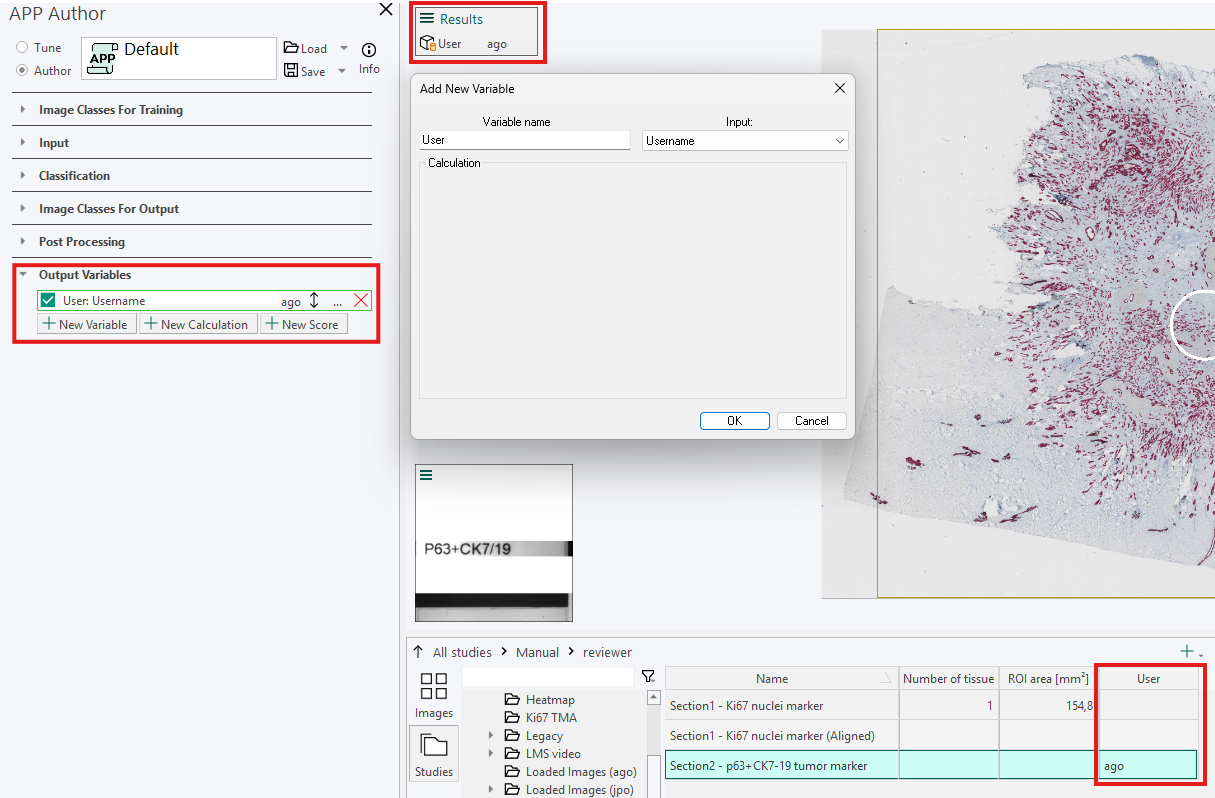
Note that when running the APP the username output variable will be overwritten by the username of the person running the APP.