Options
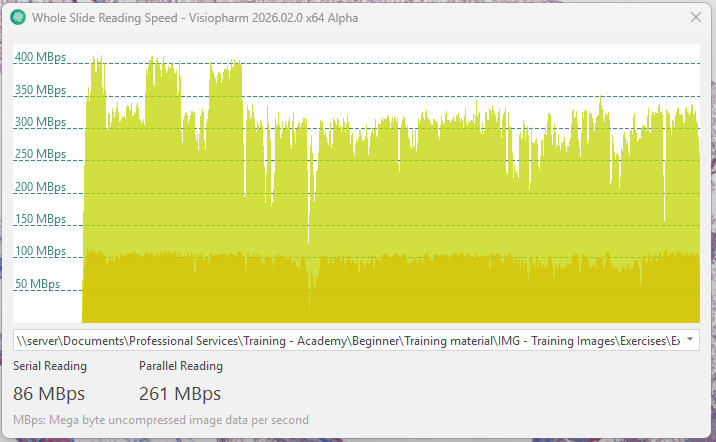
From the Options tab in the menu, users can access the general settings of Visiopharm, and specify their desired viewing options.
| Option | Description |
|---|---|
| Show Status Bar | Toggles the statur bar on/off |
| Use Dark Theme | Change overall color theme of Visiopharm from the default white and green color theme to Dark grey colored theme. |
| Minimum significant digits | Controls how many significant digits are minimum shown in the viewer. The default is 3. |
| Image Reading | Toggles embedded color profile on/off if available |
| Image Alignment | Tune the image alignment from fast towards precise. Precise requires more computation. |
| Image Navigation | Controls how fast the FOV moves/pans when using the arrow keys. |
| Arrow keys pan FOV in fixed steps of | Toggles between panning in steps of X% of the FOV or not. |
| Max digital zoom | Limits the viewer to only zoom digitally to a given limit. If 'None' is chosen, Visiopharm will stop zooming when the current zoom level corresponds to the resolution of the image. |
| Warn before closing the application | Toggles a pop-up warning when closing the Visiopharm application |
| Used Import options | It is possible to import the DICOMweb and/or the 3HISTCH SlideCenter integration into the Visiopharm software. |
| Test image reading speed.. | Opens Whole Slide Reading Speed dialog. |
Layout and View - Status bar
The status bar displays several practical information regarding the current module and/or image. It shows information such as: Magnification, degree of zoom, frame, pixel value, drawing mode, etc. The information presented here is specific to the active module and/or image.
Image Reading
Use embedded color profile if available toggles embedded color profile on/off. Per default the setting is off, and if on, an embedded color profile is used (if available).
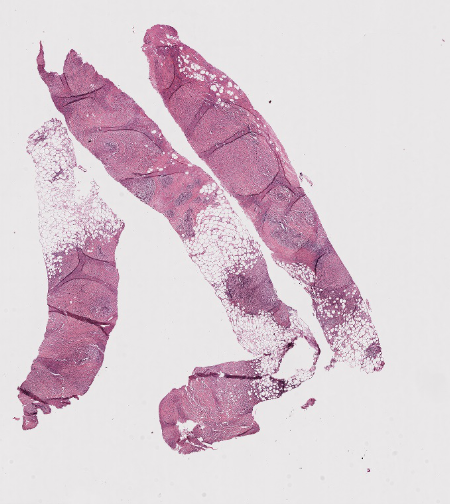
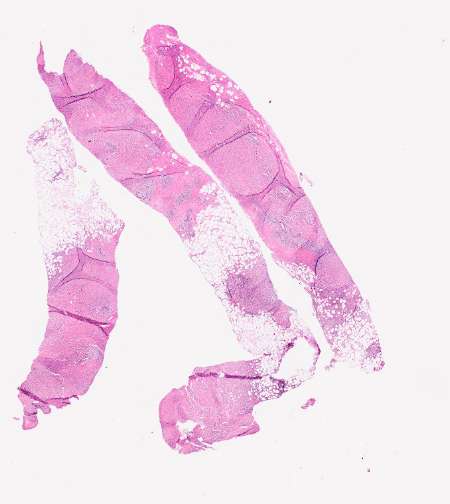
Comparison of images without (left) and with (right) embedded color profiles.
For a full list of image formats that support embedded color profiles, see Supported image formats.
To ensure optimal image display, it is recommended to restart Visiopharm after toggling the embedded color profile on or off. This helps apply the updated color profiles to both displayed images and case images.
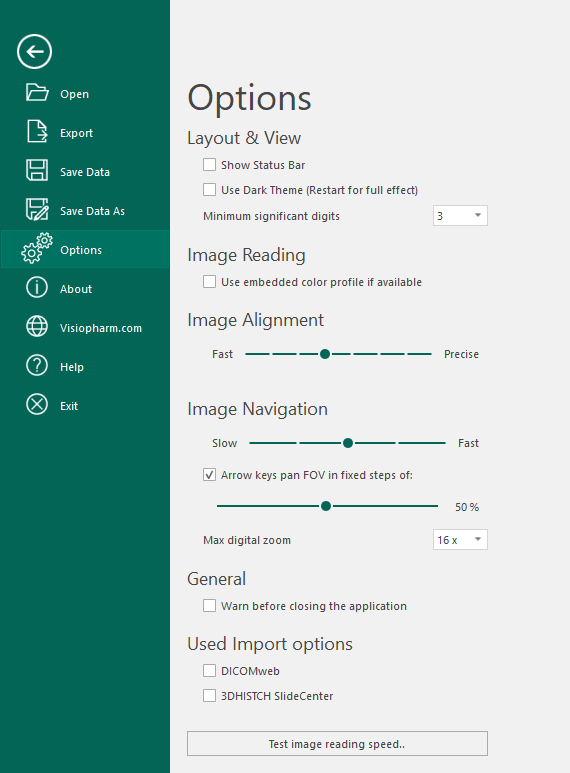
Test image reading Speed..
Opening this dialog will open the window Whole Slide Reading Speed, a window that continuously checks the reading speed of the current image. This tool measures the systems overall bandwith for retrieving and decompress image data.
The following two measures are presented:
- Serial Reading: The speed of viewing images during image analysis, where individual portions of the image will be read in serial.
- Parallel Reading: The speed of viewing and navigating images when multiple portions of the image are read in parallel.
Regardless of the measured bandwith, Visiopharm’s technology will work, but the user experience will increase with larger bandwidth.
If experiencing issues e.g. poor viewer performance, it is recommended to check and optimize the network, server, and storage infrastructure.